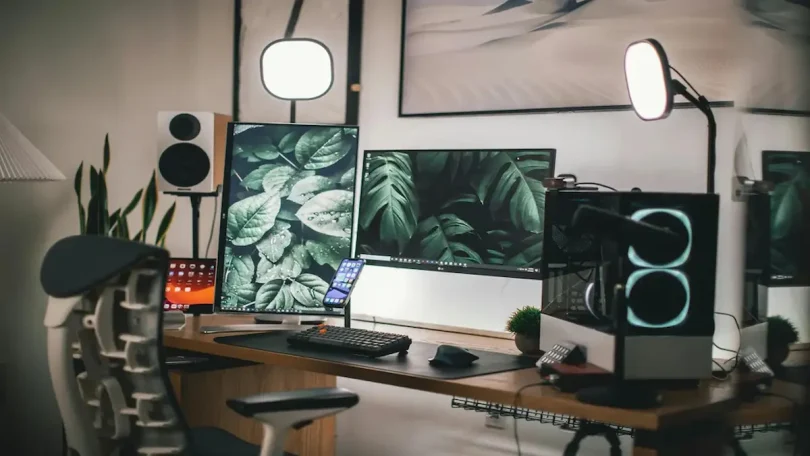

If you spend long hours in front of a screen, following the right monitor setup tips can completely change how you feel at the end of the day. Many people focus on buying a good monitor but forget that how you set it up matters just as much. A proper setup helps reduce eye strain, neck pain, back issues, and even mental fatigue.
In this detailed guide, I’ll walk you through practical monitor setup tips in a simple, conversational way—just like I’d explain it to a friend.
Why Monitor Setup Is So Important
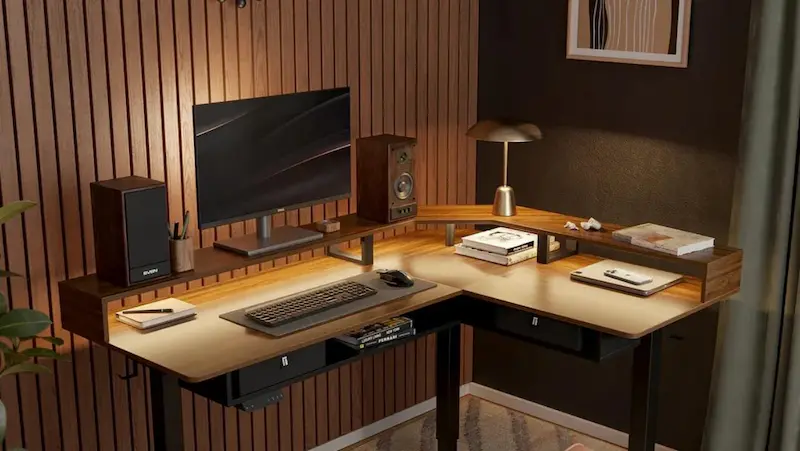
Before we dive into the tips, let’s talk about why monitor setup deserves attention. When your monitor is poorly positioned, your body silently adapts in unhealthy ways. You lean forward, bend your neck, squint your eyes, and over time, this leads to discomfort and health issues.
Good monitor setup tips help you:
- Maintain a natural sitting posture
- Protect your eyes from strain and dryness
- Stay focused and productive for longer
- Avoid long-term neck, shoulder, and back pain
Think of your monitor setup as an investment in your daily comfort.
1. Monitor Height: Get Your Eye Level Right
One of the most important monitor setup tips is setting the correct height.
Ideal Position
- The top of the monitor should be at or slightly below eye level
- Your eyes should naturally fall about 2–3 inches below the top edge of the screen
Why It Matters
When the monitor is too high, you tilt your head back. When it’s too low, you bend your neck forward. Both positions strain your neck and shoulders.
Easy Fix
- Use a monitor stand or adjustable arm
- Stack books under the monitor if needed
Your neck should feel relaxed, not stretched.
2. Maintain the Perfect Viewing Distance
Another crucial part of monitor setup tips is distance.
Recommended Distance
- Keep your monitor 20 to 30 inches away (roughly an arm’s length)
How to Check
Sit comfortably in your chair. Stretch your arm forward—your fingertips should just touch the screen.
Why This Helps
- Too close = eye strain and headaches
- Too far = leaning forward and poor posture
At the right distance, your eyes stay relaxed and focused.
3. Adjust the Monitor Angle Properly
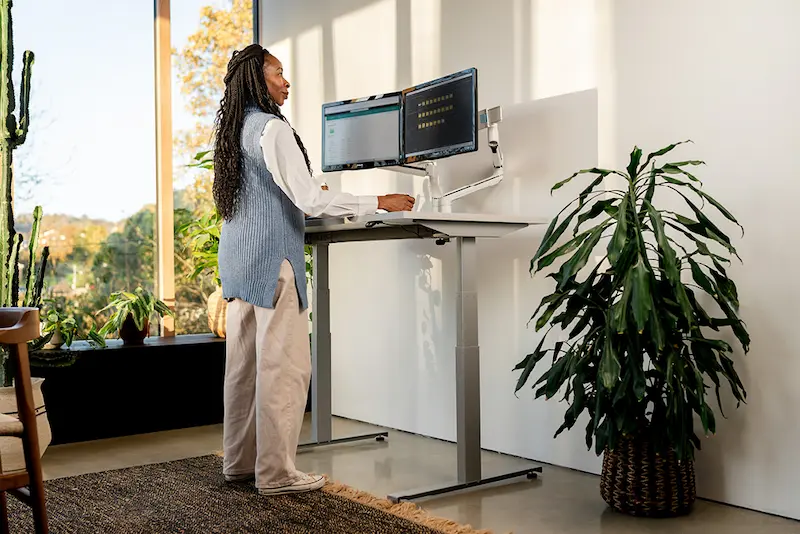
Many people ignore this, but angle adjustment is a key part of effective monitor setup tips.
Best Angle
- Tilt the monitor 10–20 degrees backward
- The screen should face your eyes directly
Benefits
- Reduces glare
- Prevents neck strain
- Improves screen visibility
If you notice reflections or feel like you’re bending your neck, adjust the tilt.
4. Reduce Glare and Improve Lighting
Bad lighting can ruin even the best monitor setup.
Lighting Tips
- Avoid placing your monitor directly in front of or behind a window
- Use soft, indirect room lighting
- Avoid harsh overhead lights
Extra Help
- Use anti-glare screen protectors
- Adjust monitor brightness and contrast
Proper lighting combined with smart monitor setup tips keeps your eyes comfortable all day.
You may also like to read this:
Latest Laptop Models Review | Top Picks For Every Budget
Best Gaming Mouse 2026 – Top Picks And Expert Reviews
Mechanical Keyboard Buying Guide: Tips For 2025
Top Headphones For PC Gaming – Best Gaming Headsets 2025
Essential PC Accessories For Better Performance And Comfort
5. Set the Right Brightness and Contrast
Your monitor should blend naturally with your environment.
How to Adjust
- Bright rooms → slightly higher brightness
- Dim rooms → lower brightness
Simple Test
Open a white page:
- If it feels like a light source, reduce brightness
- If it looks dull, increase brightness slightly
Balanced brightness is one of the most effective monitor setup tips for eye health.
6. Center Your Monitor Correctly
Your monitor should be directly in front of you, not to the left or right.
Why This Matters
Constant neck turning can cause stiffness and pain over time.
Dual Monitor Setup
If you use two screens:
- Center the main monitor
- Keep both screens at the same height
- Angle them slightly inward
Proper alignment is a core part of advanced monitor setup tips.
7. Desk and Chair Alignment Matters Too
Your monitor setup works best when your desk and chair are aligned properly.
Ideal Sitting Position
- Feet flat on the floor
- Knees at or slightly below hip level
- Elbows at a 90-degree angle
- Wrists straight while typing
Your monitor, keyboard, and chair should work together as one system.
8. Use Monitor Arms for Flexibility
If possible, consider a monitor arm.
Benefits
- Easy height and angle adjustment
- Frees up desk space
- Improves posture
Monitor arms make following monitor setup tips much easier and more precise.
9. Follow the 20-20-20 Rule
No setup is complete without healthy screen habits.
The Rule
- Every 20 minutes
- Look at something 20 feet away
- For at least 20 seconds
This simple habit reduces eye strain and dryness significantly.
10. Keep Your Monitor Clean
A dirty screen forces your eyes to work harder.
Cleaning Tips
- Use a microfiber cloth
- Avoid harsh chemicals
- Clean once or twice a week
A clean display supports better focus and comfort.
11. Adjust Text Size and Resolution
Small text can strain your eyes even if your monitor is positioned perfectly.
What to Do
- Increase system text size if needed
- Use the monitor’s native resolution
- Adjust scaling in display settings
Clear text is an often-overlooked part of effective monitor setup tips.
Final Thoughts on Monitor Setup Tips
Following these detailed monitor setup tips can dramatically improve your daily comfort, posture, and productivity. You don’t need expensive gear—just a thoughtful setup and a few smart adjustments. Take 10–15 minutes to apply these tips, and you’ll feel the difference almost immediately.
FAQs
1. What are the most important monitor setup tips for daily use?
The most important monitor setup tips include placing the monitor at eye level, keeping it an arm’s length away, centering it in front of you, and adjusting brightness to match your room lighting. These basics help reduce eye strain and neck pain.
2. How high should my monitor be for proper ergonomics?
Your monitor should be positioned so the top of the screen is at or slightly below eye level. This allows you to look slightly downward at the screen, which is more natural for your neck and posture.
3. What is the ideal distance between eyes and monitor?
According to good monitor setup tips, the ideal distance is 20–30 inches, or roughly an arm’s length. This distance keeps your eyes relaxed and prevents you from leaning forward.
4. How can I reduce eye strain while using a monitor?
To reduce eye strain:
Follow proper monitor setup tips
Adjust brightness and contrast
Reduce screen glare
Follow the 20-20-20 rule
Keep your screen clean
These steps work together to protect your eyes.
5. Are monitor setup tips different for laptops and desktops?
Yes, slightly. Laptop screens are usually too low, so using a laptop stand or external monitor is recommended. The same monitor setup tips apply, but external keyboards and mice improve comfort.