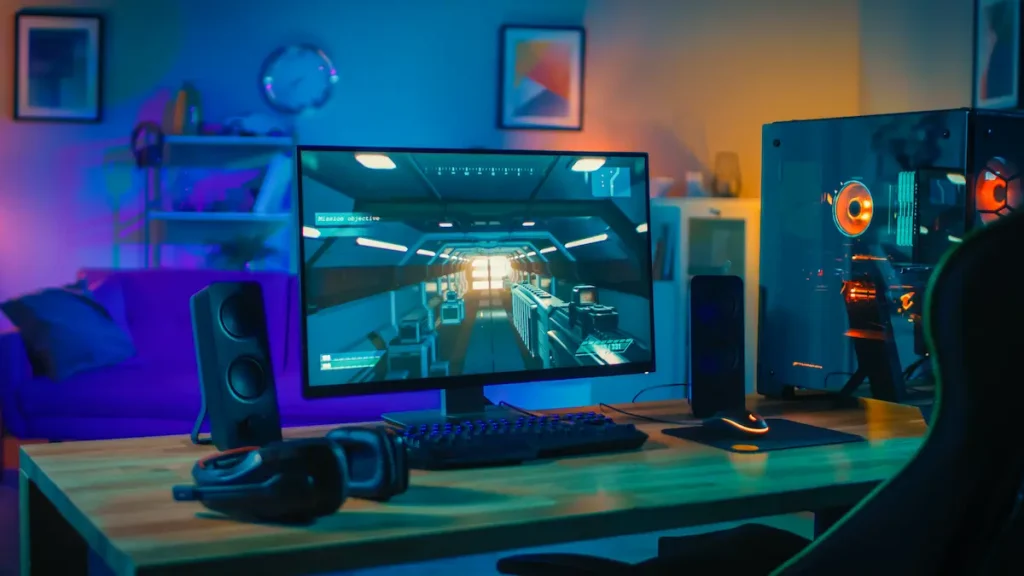
A good gaming PC build is not about buying the most expensive part in every category. It is about balance. A powerful graphics card paired with an old processor, a slow drive, or a weak power supply will disappoint you, while a carefully matched system can handle new games smoothly for years. This guide walks through each decision in a practical order, so you spend money where it actually improves performance and avoid the mistakes that force an early rebuild.
Start With Your Resolution, Games, and Budget
Before you open a single product page, decide what you want the machine to do. Playing competitive shooters at 1080p and high frame rates is a very different target from playing large open-world games at 4K with ray tracing turned on. Your monitor matters here: a 1440p, 144Hz display needs more graphics power than a basic 1080p, 60Hz screen, and buying a card far stronger than your display can show is wasted money.
Set a total budget that includes the parts people often forget: Windows or other software, a decent keyboard and mouse, a headset, and maybe a larger desk monitor later. Then divide that budget roughly. In most builds, the graphics card takes the largest share, followed by the processor, motherboard, memory, storage, case, cooling, and power supply. If one part consumes almost everything, the rest of the system usually suffers.
Also think about your everyday use. The same PC you game on at night will handle browsing, streaming, study, and work during the day. Reading step-by-step guides, watching videos, and managing accounts online place almost no load on a gaming system, so do not overpay for general use. Save that money for gaming performance, where it counts.
Choose the Graphics Card First
For gaming, the graphics card, or GPU, has the biggest effect on frame rates and visual quality. Look at benchmarks for the exact games and resolution you care about, not just launch-day marketing charts. Check how much video memory the card has, because newer games use more of it at higher resolutions and texture settings. A card that is fine today at 1080p may struggle sooner at 1440p if its memory is limited.
Consider size and power as well. Measure the clearance inside the case you want, confirm the card will fit with room for airflow, and check its recommended power supply wattage and connector type. A slightly slower card that fits comfortably, runs quietly, and leaves upgrade room is often a better buy than a huge card squeezed into a cramped case with cables pressed against it.
Pick a Processor That Keeps Up
The processor, or CPU, feeds the graphics card with data and handles game logic, background apps, and streaming. You do not need the top model for most gaming, but you do need a modern chip with enough cores and strong single-core performance. A balanced mid-range processor is the sweet spot for most people: it keeps frame rates stable in busy scenes and still handles Discord, a browser, and recording software in the background.
Make sure the CPU and motherboard use the same socket, and check whether the motherboard may need a BIOS update for that chip. Also look ahead. A platform that supports faster memory and at least one future processor generation gives your gaming PC build a longer life, because a CPU upgrade in three years is far cheaper than replacing the motherboard, memory, and processor all at once.
Motherboard, Memory, and Storage
The motherboard connects everything, so choose it for the features you will actually use: enough USB ports for your devices, built-in Wi-Fi if you need it, good audio, and at least two M.2 slots for storage expansion. Expensive boards aimed at extreme overclocking rarely improve game performance in a meaningful way for a typical builder.
For memory, 32GB is now a comfortable target for a new gaming system, with 16GB as a minimum for a tight budget. Buy memory as a matched kit of two sticks, check the speed and timings supported by your processor, and enable the memory profile in the BIOS after you build. Running two sticks also lets the system use dual-channel mode, which helps performance.
For storage, a fast NVMe solid-state drive should be your main drive for Windows and games. It cuts loading times and makes the whole PC feel responsive. Start with 1TB if you can, or 2TB if you keep many large games installed. You can add a second drive later, which is one of the easiest upgrades in any gaming PC build.
Power, Cooling, and the Case
Never save money by buying a cheap, unknown power supply. The PSU powers every part, and a poor-quality unit can cause crashes, noise, or damage. Choose a reputable model with enough wattage for your graphics card plus headroom for a future upgrade, and look for a good efficiency rating and a long warranty. Modular cables make building cleaner and improve airflow.
Cooling keeps performance consistent. A modern tower air cooler is quiet, reliable, and enough for most processors. Liquid cooling can look clean and work well in smaller cases, but it adds cost and complexity. Whichever you choose, set up case fans so cool air enters at the front or bottom and warm air leaves at the top or back. Good airflow also protects the graphics card during long sessions.
Pick a case for airflow and ease of building, not only for lights and glass. A mesh front panel, room behind the motherboard tray for cables, and tool-free panels make both the first build and later cleaning much easier. A case you enjoy working in is a case you will maintain.
That same attention to setup helps with everyday tasks too. Whether you are following a beginner walkthrough such as this xbet original guide to getting started or reading a detailed explainer like the OnlyFans Free Version Guide, a quiet, cool, reliable PC makes long reading and streaming sessions far more comfortable.
Assemble Carefully and Test Step by Step
Build on a clean table, keep screws organised, and ground yourself regularly to avoid static. Install the processor, cooler, memory, and M.2 drive on the motherboard before you place it in the case — it is much easier that way. Connect the front-panel wires carefully, because those small connectors are the most common source of a first-build scare when the power button seems to do nothing.
When you first switch on, check that all fans spin and the system reaches the BIOS. Enable the memory profile, confirm the drive is recognised, then install your operating system and drivers in order: chipset first, then graphics, then everything else. Run a game or benchmark for twenty minutes and watch temperatures. Small problems found on day one are simple fixes; ignored, they become crashes months later.
Plan Upgrades Instead of Chasing Perfection
No build stays current forever, and that is fine. Design yours so the easy upgrades stay easy: spare M.2 slot, two free memory slots if possible, a power supply with headroom, and a case that fits longer graphics cards. Then upgrade in the order that helps most — usually graphics card first, storage second, and processor when your platform still supports a worthwhile step up.
A thoughtful gaming PC build rewards you every time you sit down: games load quickly, frame rates stay smooth, fans stay quiet, and you are not shopping for replacement parts six months later. Choose balanced parts, build carefully, and keep the system clean and updated. That simple formula lasts longer than any single headline specification.